

Sub-Total: RM0.00


How to Create Temporary PINs for Part Time Helper and Guests with Your Kaadas Digital Lock
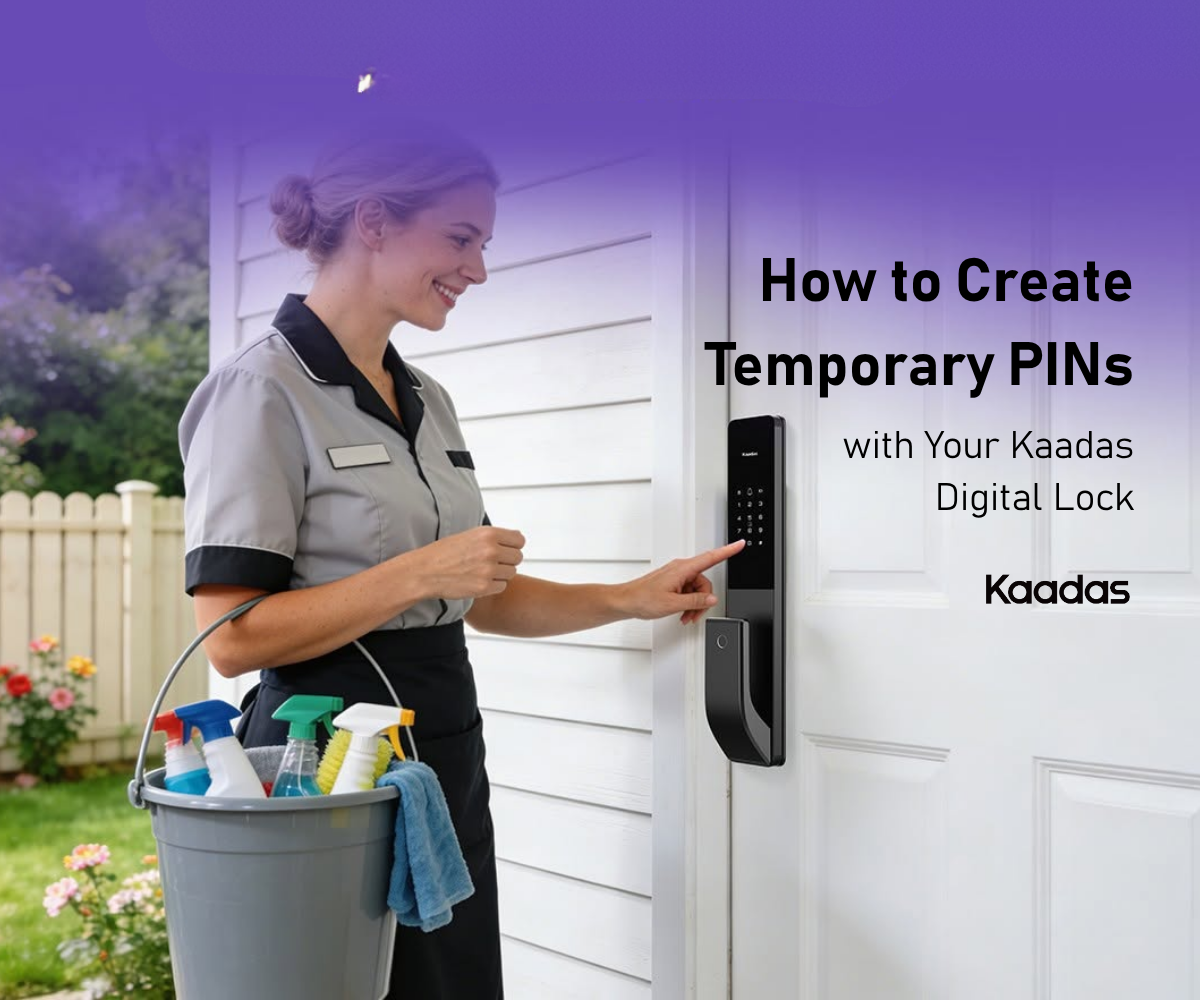
Most Malaysian households that install a digital lock ask the same question within a few weeks: how do I give access to someone without giving them a permanent key? The temporary PIN feature is the answer. It lets you create time-limited access codes for part-time helpers, guests, contractors, or tenants: codes that expire automatically, require no app on the recipient’s phone, and generate an access log entry every time they are used.
Why Temporary PINs Are Better Than Physical Keys
A physical key can be duplicated, does not expire, and gives no record of when it was used. If a helper leaves employment and keeps the key, or if a key is simply lost, your lock is compromised until you replace the cylinder.
A temporary PIN has none of these risks. It lives digitally on your WiFi lock, can be revoked in seconds from your phone, and creates a timestamped log every time it is used. When it is no longer needed, it is deleted. Done.
Setting Up a Temporary PIN, Step by Step
Note on model compatibility: The steps below apply to the K70SE, P30 Pro Max, and K20 Pro Max. Other Kaadas models handle temporary PINs differently, so check your model’s manual or contact Kaadas support if your app screens don’t match what you see here.
Step 1: Open the App and Navigate to User Management
Launch the Kaadas Smart App and tap your lock from the home screen. Navigate to Manage User. You will see existing registered users. Tap “Add User” to create a “Custom” profile.
Step 2: Create the User Profile
Give the user a clear label, such as “Helper Mon-Fri”, “Guest Weekend”, or “Plumber 12 Jun”, so the access log is readable later. Select PIN code as the access method.
Create a PIN of the length your lock’s app allows, and avoid obvious patterns like 1234 or repeated digits. The app will ask you to confirm the code twice. If the lock supports it and the user visits regularly, you can also register a fingerprint, face, or card at this step.
Step 3: Set the Time Restriction
This is the key step that separates a temporary PIN from a permanent one. After creating the PIN, tap the scheduling or access time option. Set the days and hours when the code is valid.
Examples: domestic helper access Monday to Friday, 8 am to 7 pm; a house guest for the duration of their stay; a contractor for a single date between 10 am and 12 pm. Once the scheduled period passes, the PIN deactivates automatically. You do not need to remember to delete it.
Step 4: Share the PIN and Monitor Usage
Share the PIN with the user by message or verbally. They do not need the Kaadas app or an account: the code works directly on the lock keypad during the approved window.
Every use generates an entry in the access log: the user label, the timestamp, and the access method. View this from the app at any time. For a full picture of how different access methods work alongside PINs, understanding access modes covers all options in detail.
Revoking Access Early
If circumstances change, whether a helper leaves, a guest checks out, or a contractor finishes early, go to user management, find the profile, and tap delete. The code stops working instantly. No physical action at the door is required.
Practical Tips for Managing Multiple Users
Use descriptive labels, not numbers. Set access windows conservatively. It is easy to extend access if needed, but easy to overlook an unintended active code. Review the active user list monthly and delete profiles that are no longer in use. For tenants, create a separate PIN per tenancy and schedule the revocation date in your calendar.
Everyday Situations Where a Temporary PIN Earns Its Keep
The feature sounds abstract until the first time it saves you a trip to the door. A few common Malaysian examples: a cleaner who comes every Tuesday and Friday gets a code that only works on those mornings, so there is no key to hand over and no key to get back. During Hari Raya or Chinese New Year, out-of-town relatives staying for a few nights get a code that expires the day they leave. A renovation contractor working over a fortnight gets access limited to working hours, and the log shows you exactly when the team arrived and left each day. For anyone renting out a unit, each tenancy gets its own PIN with the revocation date set in advance, and the log doubles as a simple occupancy record between tenants.
An extra layer at the keypad: the Fake PIN feature. On Kaadas models that support it, you do not have to key in your exact code in full view of a helper or a stranger. The Fake PIN feature lets you type random digits before or after your real PIN, and the lock still recognises and opens for you while your true code stays hidden. It is a small habit that matters most in shared corridors and condo lift lobbies, where someone standing behind you could otherwise memorise a code over your shoulder.
A closing reminder on discipline: it is always easier to extend access than to remember to cancel it. Set windows tight, review your active user list once a month, and delete anything you no longer recognise. The whole point of a temporary PIN is that access ends on its own, so let it.
If you are still evaluating which model to buy, the key features to look for guide covers the full purchasing checklist. To explore the Kaadas range, browse all Kaadas locks is the best starting point.